
 Download free via Telegram


Hardware and system IDs
See which serial numbers, system IDs and specifications are available in your environment. Use them to investigate possible leaks.
AntiBotPCExplorer v.1.4.0Vektor T13
Different VMs can share hardware identifiers. Compare them with each other and with a physical computer, investigate possible leaks and discover signs of virtualization. AntiBotPCExplorer compares JSON reports and brings together more than 100 VM detection methods.

Program features
See which data your system exposes, save the results and compare them with another machine. Find unexpected matches and check whether your configuration changes made a difference.
See which serial numbers, system IDs and specifications are available in your environment. Use them to investigate possible leaks.
Analyze hardware parameters and characteristics that could reveal information about the physical host.
Inspect host computers and virtual machines with the same tool.
Save results as JSON to compare with another machine or a new scan after changing settings.
Compare two JSON reports and find shared identifiers. Investigate links between a VM and its host or differences between two VMs.
Use a multilingual interface. All program features are free.
Interface
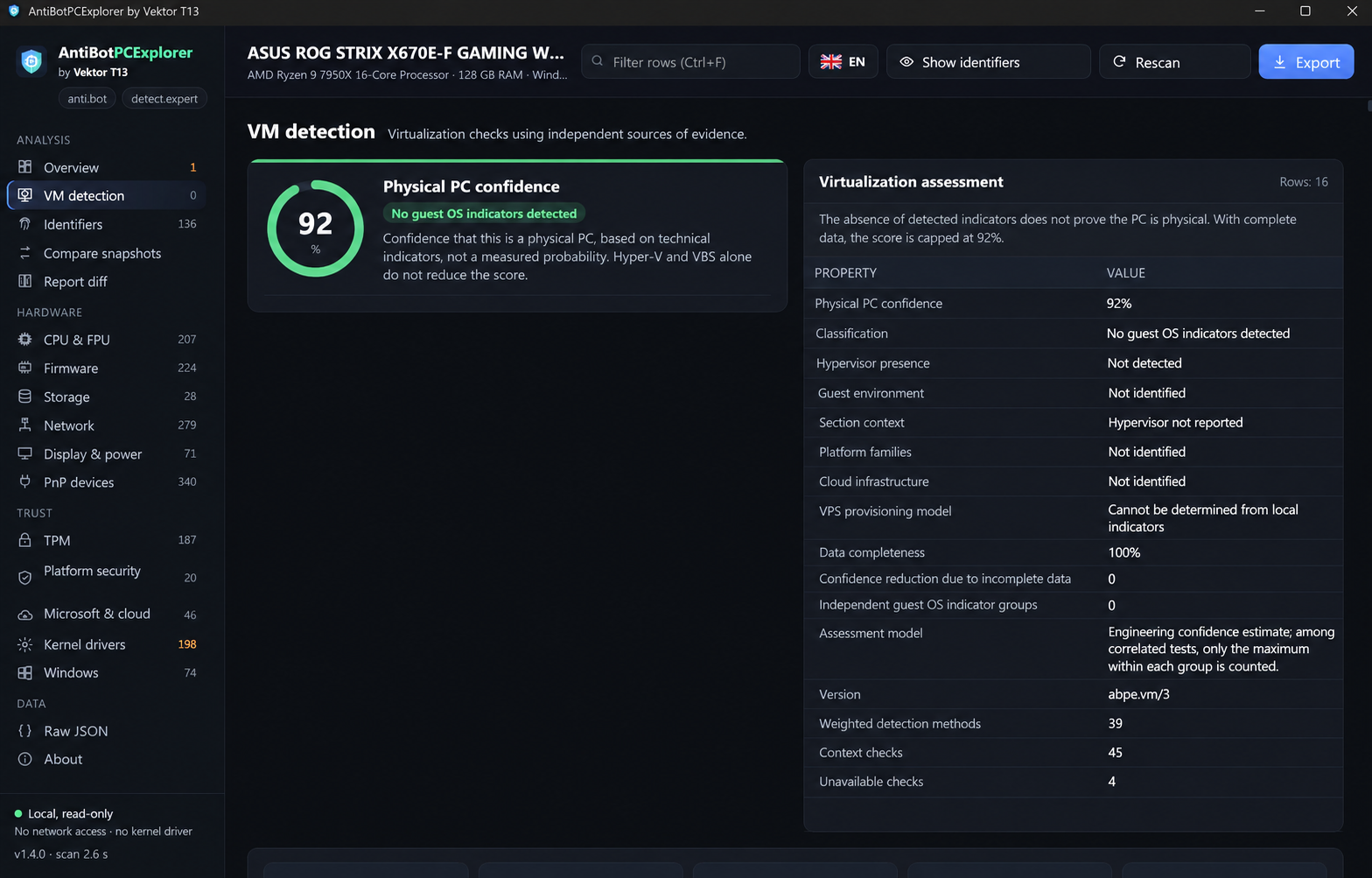
VM detection, hardware identifiers and report comparison in one application.
JSON report comparison
If you use several VMs with different digital profiles, matching hardware identifiers could reveal connections between them or with your computer. Compare reports in advance to find unexpected matches and identify environment parameters worth reviewing.
Check whether the physical computer's serial numbers or other identifiers appear inside the virtual machine. Investigate possible leaks before using the VM for work.
If you need independent environments, inspect their hardware IDs. Comparison shows what the machines share and how their configurations differ.
Privacy
Diagnostics do not require an internet connection. The program makes no network requests and sends no identifiers to third-party servers. Inspect your environment while keeping control of its data.
Major update
Fingerprint diagnostics and report comparison now include an expanded set of modern virtual environment checks for Windows 11.
The major update combines more than 100 VM detection methods in one tool.
Analysis of CPU, GPU, EDID, storage drives, network adapters and other system components.
Virtualization checks that go well beyond searching for registry entries.
Detection of virtualization indicators in cloud environments and virtual servers.
Checks for hardware anomalies, configuration inconsistencies and signs of emulation.
TPM analysis, including certificate and attestation mechanism checks.
A strong indicator of virtualization.
Higher weightA less reliable indicator that should be considered alongside other checks.
Lower weightResult accuracy
Detection methods are not treated as equally reliable. Each check has its own weight according to how strongly it indicates virtualization.
A characteristic virtual device and a small CPU performance anomaly are signals with different levels of reliability.
This approach helps reduce false positives (false positive) when assessing a virtual environment. The report percentage is an engineering confidence estimate for a physical PC, not a measured probability or a guarantee of anonymity.
Virtualization detection
See which signs of virtualization remain detectable.
Run the program inside your VM and see which virtualization indicators it detects.
Inspect a Windows virtual server and review the available signs of virtualization.
Getting started
Download AntiBotPCExplorer 1.4.0 for free.
Run the utility on a physical computer or in a VM. Review the data and export the results as JSON.
Collect a report from the second environment, compare the two JSON files and assess matches, differences and virtualization indicators.
Version history
FAQ
Yes. AntiBotPCExplorer is completely free, including diagnostics, JSON export and report comparison.
Yes. Diagnostics and report comparison do not require an internet connection. The program makes no network requests and sends no hardware identifiers to third-party servers. Results stay on your computer.
Yes. The program collects available hardware and system identifiers from both physical computers and virtual machines.
Save a JSON report on the physical host, then create another inside the VM. Compare the files in the program and investigate matching identifiers and hardware characteristics.
Yes. Save a JSON report in each VM and compare them to find unexpected identifier matches and configuration differences.
No. Hardware model and virtual device type identifiers may legitimately match. Assess matches in the context of their meaning and the environment configurations.
More than 100 VM detection methods, modern Windows 11 checks, hardware and TPM analysis, anomalies and emulation indicators. Checks carry different weights according to indicator reliability.
Yes. Run the utility in the Windows environment of your VPS or VDS and see which virtualization indicators remain detectable.
The interface supports multiple languages. You can choose a language inside the program.
Yes, you can choose to send both JSON reports for analysis. Review their contents first: they may contain unique hardware identifiers.
Feedback
If a HOST → VM or VM ↔ VM comparison reveals a possible leak, share your findings with support. You can send both JSON reports for detailed analysis.
Review the files before sending: reports may contain unique hardware identifiers.
Find unexpected ID matches and discover which virtualization indicators are visible in your environment.
AntiBotPCExplorer 1.4.0 is free. Works offline.
My chat

Any questions?


